WORDPRESS
7 Top WordPress Backup Plugins to Safeguard Your Website
Backing up your website is important to prevent loss of data or functionality. A backup is a copy of your website’s content and settings. Backups can vary, from full site downloads to smaller incremental backups. Your backup needs depend on the type of website you have and how often you update it.
In this article, we’ll explore some popular backup plugins and their best uses.
What is a Backup Plugin?
A backup plugin is a tool you can add to your WordPress site. It helps create copies of your website so that you can recover it if something goes wrong. This can happen if a plugin breaks your site, if you update WordPress incorrectly, or if you change your site design. Backups are also helpful when moving your site to a new hosting provider.
7 Popular Backup Plugins
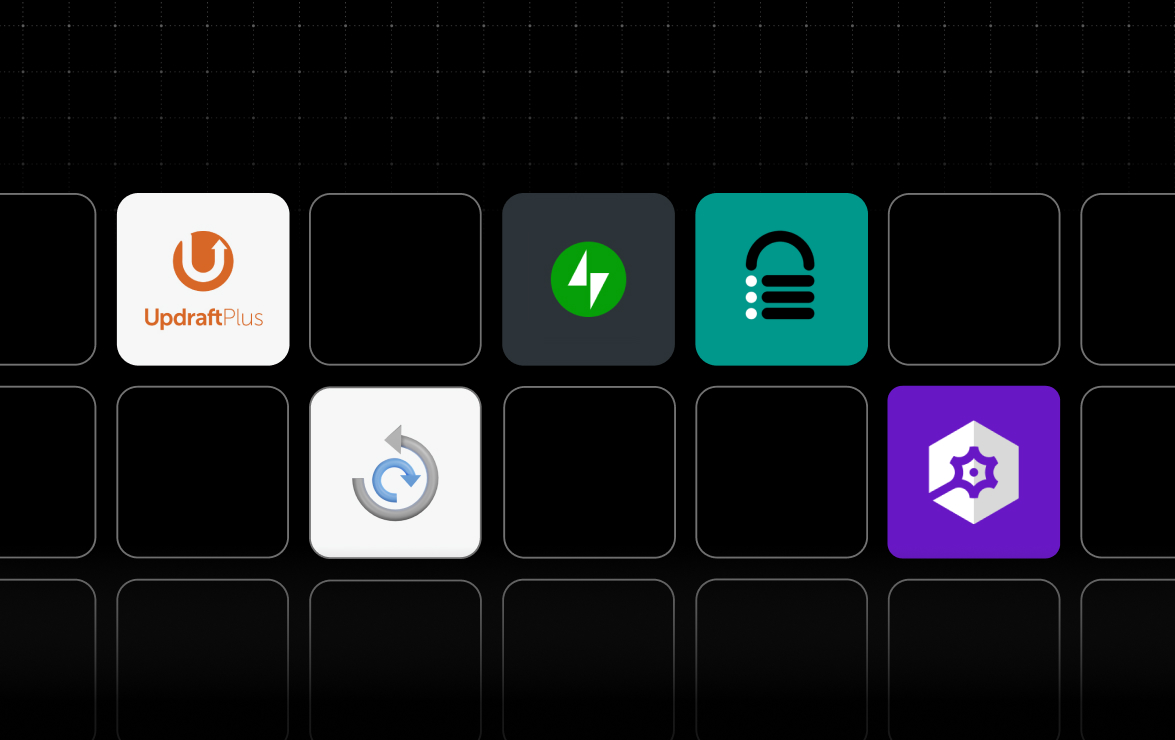
Here are seven popular backup plugins, each with its own strengths.
1. Jetpack VaultPress
Best for: Real-time backups
Price: Free with WordPress.com Business plan and above; $59.40/year for other hosts.
Jetpack VaultPress offers automatic backups every time you make changes to your site. It’s user-friendly, requiring no setup. You can restore your site with one click. This is ideal for e-commerce sites and frequent content updates.
2. Backup Migration
Best for: Free, local backups
Price: Free for up to 4GB; paid plans start at under $40/year.
Backup Migration allows you to set your backup schedule (hourly, daily, or weekly). It’s straightforward and user-friendly, making it great for smaller sites. However, the free version focuses on local backups, with cloud options available only in paid plans.
3. UpdraftPlus
Best for: Fast-scaling websites
Price: Free; $70/year for Personal (up to 2 sites); $95/year for Business (up to 10 sites).
UpdraftPlus provides solid free options, allowing backups every two hours. Paid users benefit from incremental backups, which back up only the changes made. However, its user interface may be a bit tricky for non-tech users.
4. All-in-One WP Migration
Best for: One-time site migration
Price: Free for sites up to 128MB; costs $69+ for larger sites.
All-in-One WP Migration is ideal if you need to move your site’s entire content. It makes exporting and importing your site simple, perfect for users switching hosts.
5. ManageWP Backups
Best for: Multi-site management
Price: $2/month per site; $75/month for 100 sites.
ManageWP allows you to backup multiple sites from one dashboard. While backups can be done every hour, this could be a drawback for heavily active sites.
6. WPVivid Backup and Migration
Best for: Staging backups
Price: Free; $49+/year for premium features.
WPVivid is great for creating backups on staging sites where you are testing new changes. Its easy setup helps you manage staging backups smoothly.
7. Solid Backups
Best for: Established users
Price: Starts at $99/year.
Solid Backups has a solid reputation and many features. While it can be complex for new users, it provides excellent support and documentation.
How Often Should You Backup?
Most experts recommend backing up your website whenever you update it or make changes. For busy sites (like e-commerce), automated, real-time backups are best. For less active sites, less frequent backups may suffice.
Do You Need a Backup Plugin if Your Host Provides Backups?
Yes! It’s always a good idea to have additional backups. The 3-2-1 rule suggests keeping three copies of your data in two different locations, with one stored off-site. A backup plugin serves as your dedicated backup tool beyond what your host provides.
Choosing the Right Plugin
When selecting a backup plugin, consider the following:
- User-Friendliness: Check how easy it is to set up and restore backups.
- Backup Configuration: Look for features like scheduling and storage locations.
- Performance: Some plugins may slow your site during backups; make sure to choose one that minimizes impact.
Get Started with Jetpack VaultPress
If you’re interested in getting real-time updates, consider using Jetpack VaultPress with WordPress.com. It’s included in the Business plan and above, allowing you to ensure your site is always protected.
Conclusion
Choosing the right backup plugin is essential for maintaining your website’s safety. Evaluate what you need based on your site’s activity and choose a plugin that fits those needs. Start today, and keep your site secure!