
SECURITY
Fixing “421 Misdirected Request” Error After Apache Update on Plesk Servers
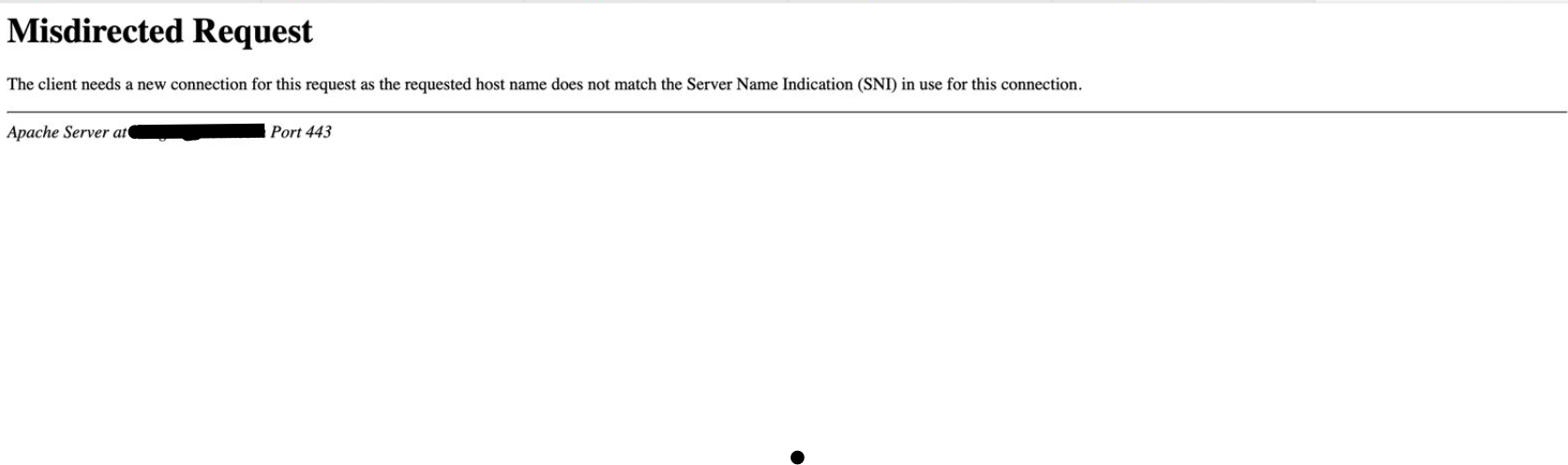
Recently, many Plesk users experienced problems with their websites after an Apache update. If you’re seeing an error like this:
- 421 Misdirected Request
- AH02032: Hostname default-203_0_113_2 (default host as no SNI was provided) and hostname www.example.com provided via HTTP have no compatible SSL setup
…don’t worry. You’re not alone – and the fix is simple.
In this guide, we’ll explain the problem in simple terms and show you exactly how to fix it, step by step.
What happened?
A new Apache update (especially on Ubuntu servers) introduced stricter rules about HTTPS. If your server is using Plesk with Apache and NGINX, they need to “talk” to each other correctly when serving secure (HTTPS) websites.
The update made Apache more secure – but also more picky.
If NGINX doesn’t send the correct SNI (Server Name Indication) when talking to Apache, Apache now refuses the connection. That’s why you’re seeing
421 Misdirected Request
This mostly affects HTTPS websites hosted on Plesk servers where NGINX is acting as a reverse proxy in front of Apache.
The Fix: Tell NGINX to Send the Server Name (SNI)
To fix this, you just need to tell NGINX to send the correct server name when passing requests to Apache.
This works on most server types, including:
- Amazon EC2
- AWS Lightsail
- Other Ubuntu/Debian or CentOS-based servers
For Ubuntu, Debian, or AWS EC2 / Lightsail (using Ubuntu)
- Log in to your server
Use SSH. If you’re on AWS, connect to your EC2 or Lightsail instance. - Open the terminal and run the fix
Paste this command to create the necessary config file and restart NGINX: -e "proxy_ssl_server_name on;\nproxy_ssl_name \$host;" \ | sudo tee /etc/nginx/conf.d/fixssl.conf > /dev/null && sudo systemctl restart nginx- Note: If you’re not logged in as root, or you get a “Permission denied” error, just add
sudobefore the command like in the example above.sudoallows you to run commands as a superuser (admin), which is needed to modify system files and restart services. - Done!
Your websites should now be working again.
For CentOS, AlmaLinux, Rocky Linux (RPM-based systems)
- SSH into your server
- Add the same fix
Run this command:-e "proxy_ssl_server_name on;\nproxy_ssl_name \$host;" \ > /etc/nginx/conf.d/fixssl.conf && systemctl restart nginx - Restart NGINX
Ifsystemctldoesn’t work, try:nginx restart - Done!
Visit your website again – the 421 error should be gone.
Optional Temporary Fix (Not Recommended)
If you can’t apply the fix above, you can disable HTTP/2 temporarily:
bin http2_pref disable
This might help, but it’s better to fix the root cause using the steps above.
Why This Happened (Short Version)
- Apache became more strict with SSL/SNI security in a recent update.
- NGINX didn’t send the right server name by default.
- Apache rejected the HTTPS request.
- By telling NGINX to send the correct name, the two servers can work together again.
What’s Next?
Plesk is working on an official fix that will be included in upcoming versions. Until then, adding this small config is the best solution.
Read the official at: https://support.plesk.com/hc/en-us/articles/33500191748887-Websites-hosted-in-Plesk-are-not-accessible-after-a-recent-Apache-update-421-Misdirected-Request
Make sure to:
- Keep your system updated
- Check your Plesk panel regularly
- Take snapshots or backups before updates, especially on AWS