7 common Facebook Messenger problems and how to fix them
Facebook Messenger is one of the best communication apps available. It’s the de facto choice for Facebook users to stay in touch with friends and family. While Facebook offers feature-rich Messenger apps on iPhone and the top budget Android phones, those apps aren’t void of issues. You can always move to another platform when Facebook Messenger starts acting up. But your Facebook friends may not be available on an alternative instant messaging app. Instead, use the steps and troubleshooting tricks below to fix common Facebook Messenger problems.
1 Can’t log in to Facebook Messenger
If you’re logged in to one of the Facebook apps, such as Instagram, Messenger automatically detects it and lets you log in with a single tap. But other times, you must sign in with your Facebook account details. If you face login issues on Messenger, try the tricks below.
Look for spelling errors on the login screen
Double-check your Facebook email address and password. Tap the eye button to glance over the password.
Reset your Facebook password
If you forget your Facebook account password, reset it instead of taking multiple guesses. Tap the Forgot Password option at the bottom and use your email or phone number to complete the password reset process. Once you add a strong password to your Facebook account, save it in one of the top password managers to avoid the same situation.
You can now open Messenger and log in with the latest account details.
Update the Facebook Messenger mobile app
An outdated Messenger app on your iPhone or Android phone can cause issues with account authentication. Facebook regularly releases Messenger updates to add new features and fix bugs. You can open the Google Play Store or App Store to update Messenger to the latest version.
2 Messages aren’t sending on Facebook Messenger
Facebook Messenger not sending messages defeats the purpose of using an IM (instant messaging) app. Try the tricks below to send messages on Messenger without any problems.
Check your phone’s network connection
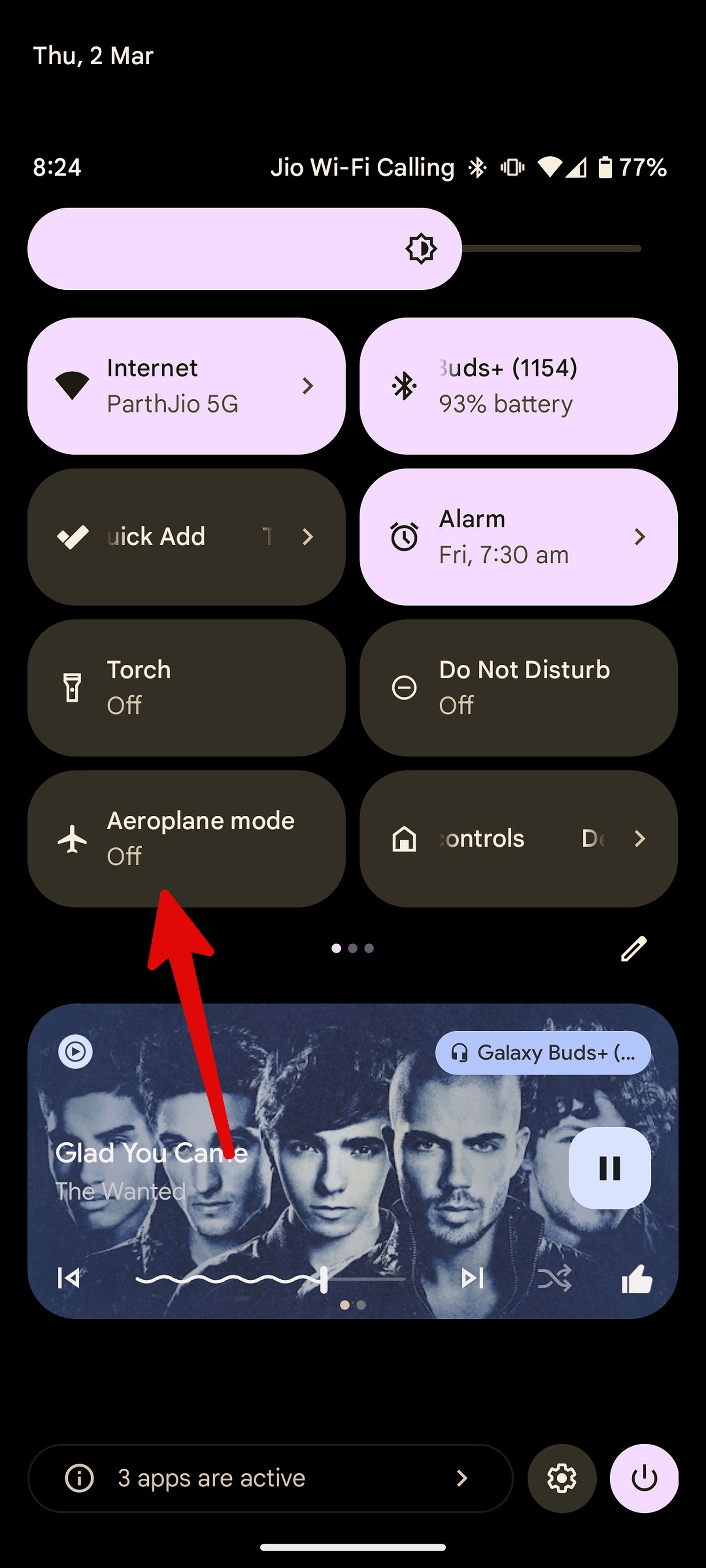
You should first ensure an active internet connection on your phone. You can also reset network settings on your phone to fix common glitches. If the issue persists, enable and disable the Airplane mode.
Android users can swipe down from the homescreen to toggle on the Airplane mode. iPhone users need to open the Control Center from the upper-right corner to access the same.
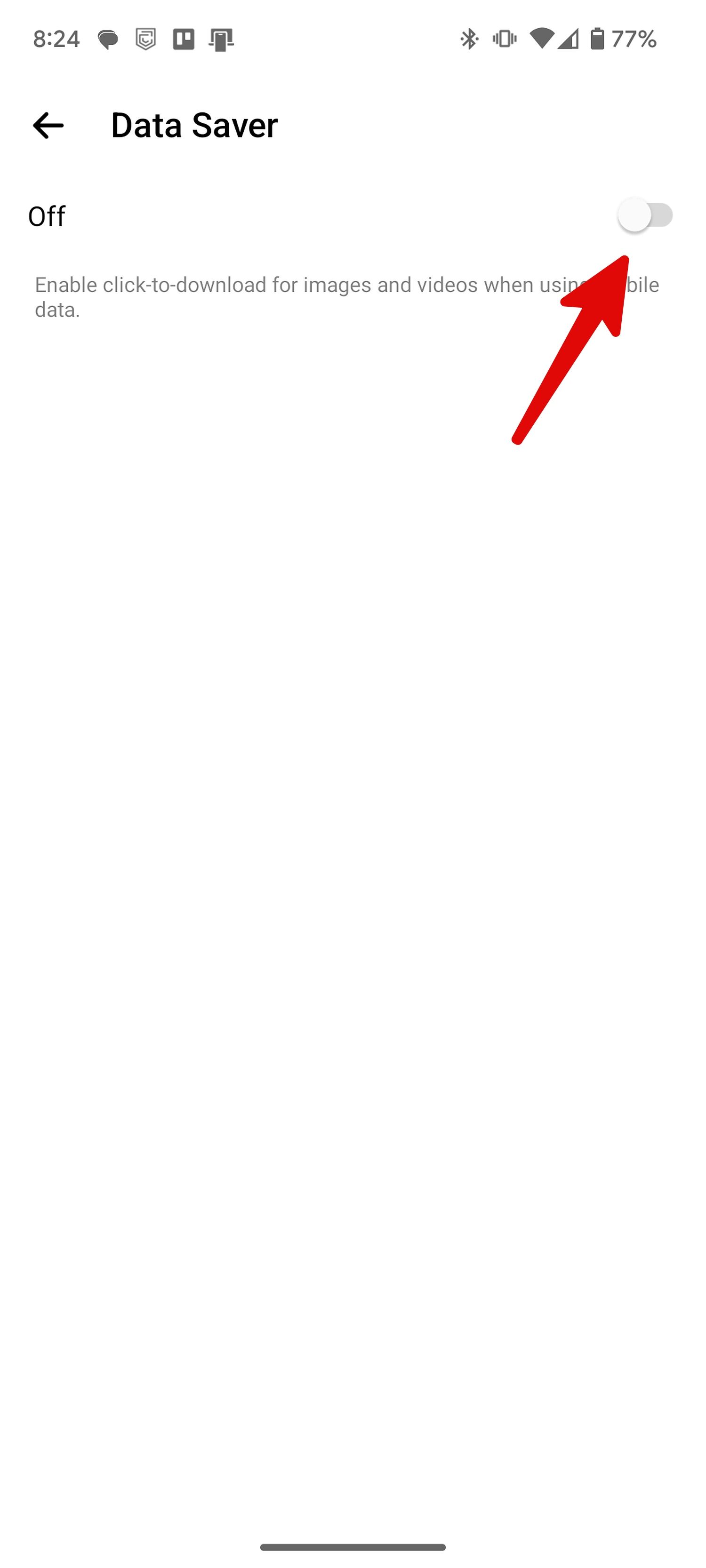
Disable Facebook Messenger’s data saver mode
An active data saver mode in Messenger for Android can be the major factor behind the app not sending messages.
-
Open Messenger on Android and tap the
hamburger menu
at the top. -
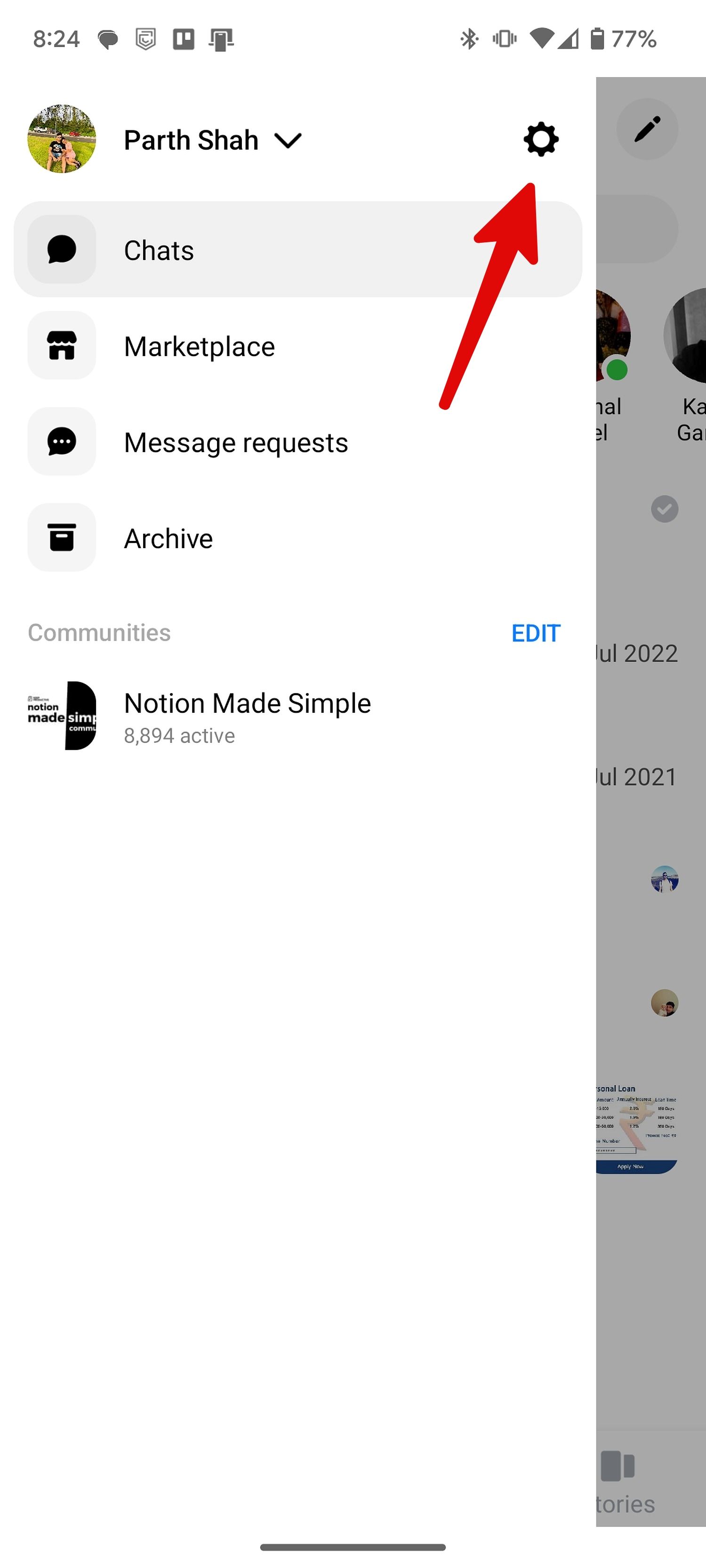
Select the
Settings
gear.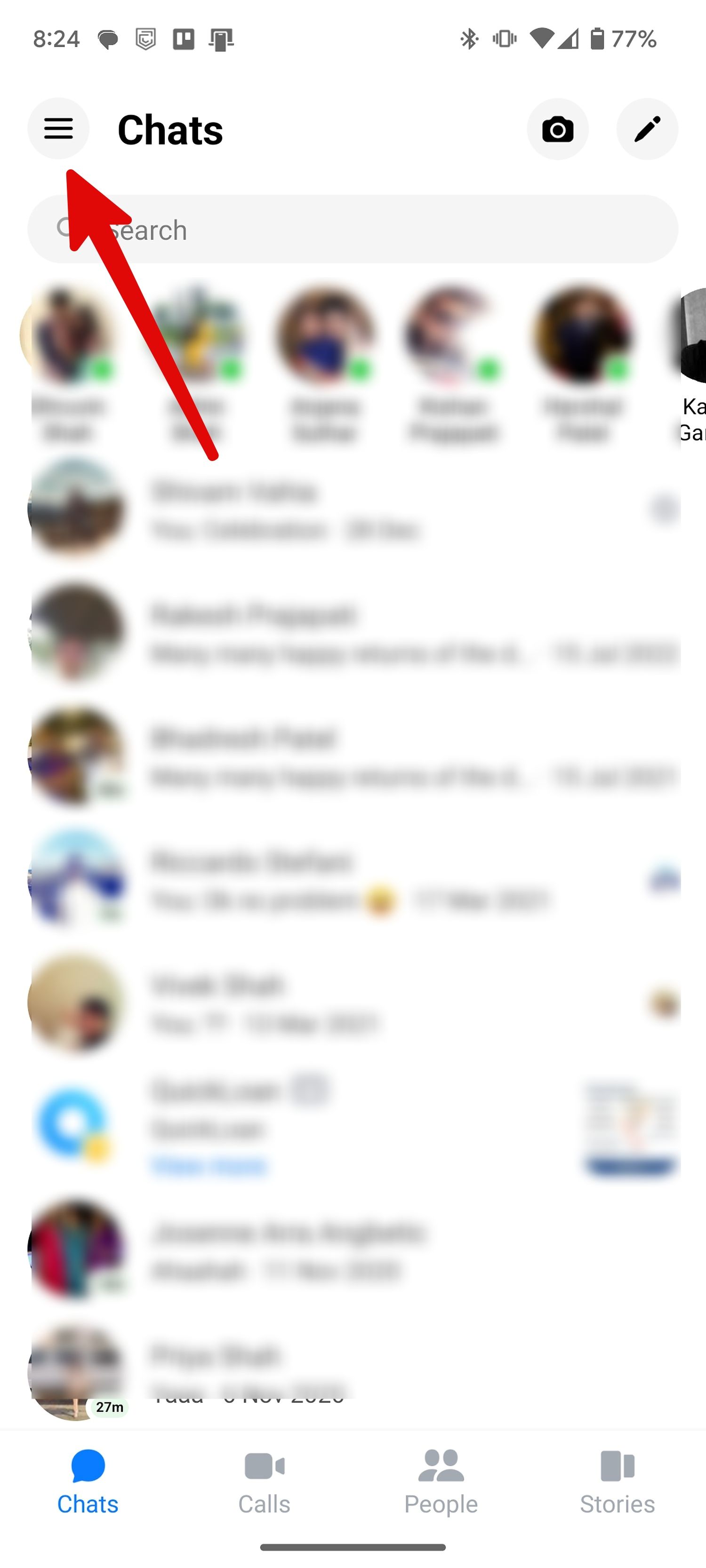
-
Open
Data Saver
. -
Disable the
Data Saver
mode.
Enable mobile data permissions for Messenger on your iPhone or iPad
Did you disable the mobile data permission for Messenger on iPhone? Messenger can’t send or receive messages until you connect your iPhone to a Wi-Fi network.
-
Open Settings on your iPhone and scroll to
Messenger
. -
Enable the
Mobile Data
toggle.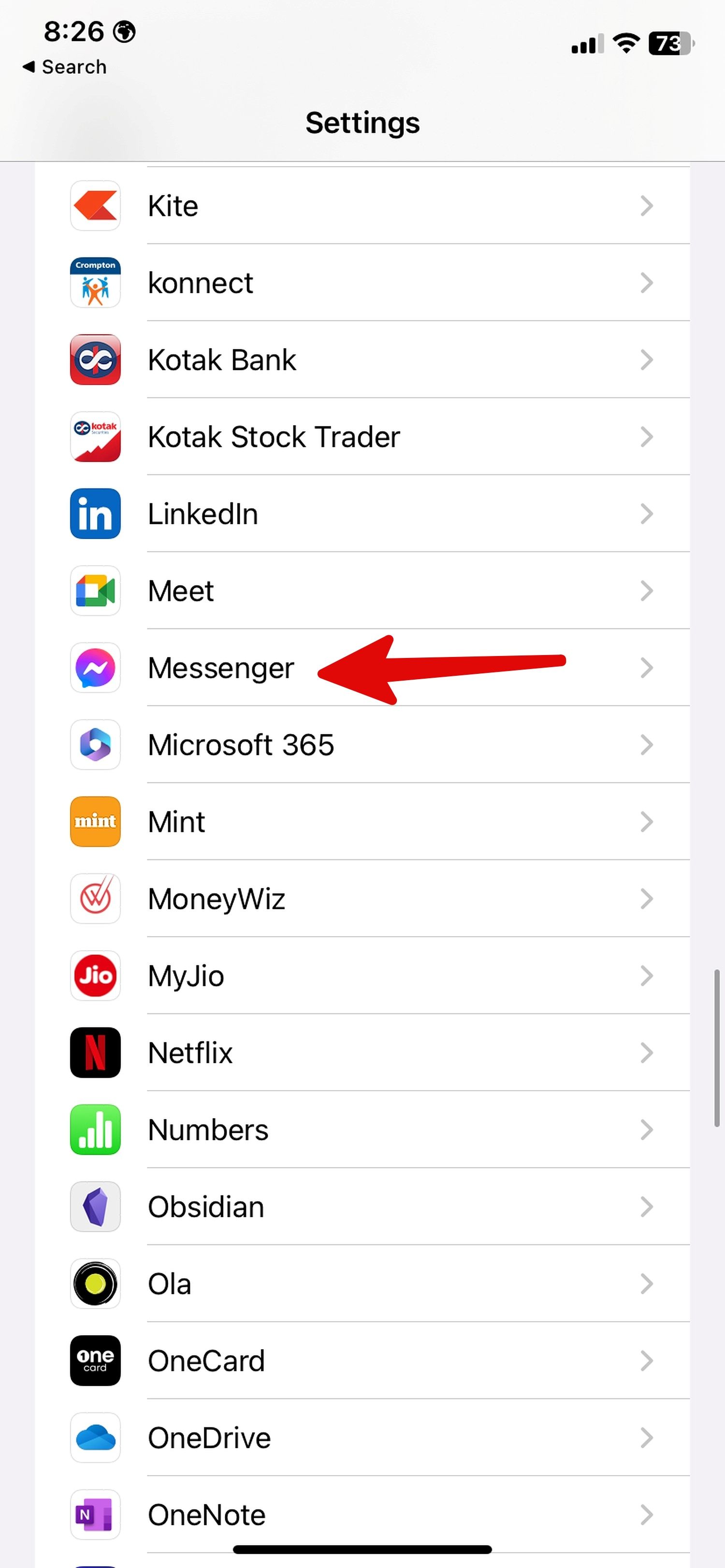

Check Facebook Messenger’s status (and Meta’s too!)
You can’t send messages on Messenger when Facebook servers face an outage. You can head to Downdetector.com and search for Messenger to confirm the same.
When you search for someone on Messenger, Facebook tries to find the person on the friends list, mutual friends list, and Instagram. Here are the possibilities if you still can’t find the person on Messenger:
- The person blocked you on Facebook.
- Facebook banned the person’s account.
- The person deleted or deactivated the account.
4 The Facebook Messenger app crashes
Does Facebook Messenger frequently crash on your Android phone or iPhone? Try the tricks below.
Restart the app Messenger
Facebook Messenger may crash due to insufficient RAM. You should close other apps on your phone and restart Messenger.
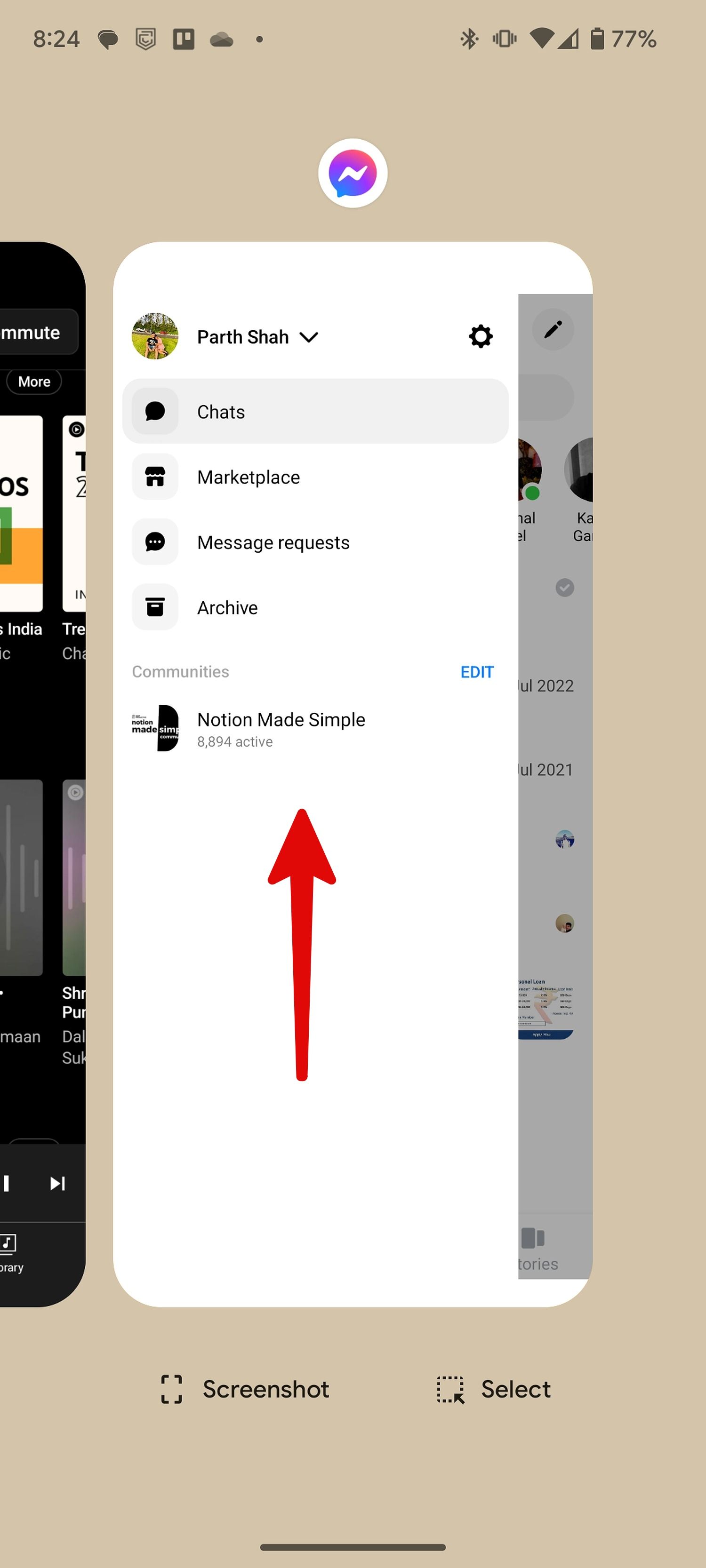
- Swipe up and hold to open the Recent Apps (Multitasking) menu.
- Swipe up on Messenger to completely close it.
-
Open Messenger and start using it without any problem.
Force close Facebook Messenger on Android
You can force close Messenger to troubleshoot common misbehaves.
- Long-tap the Messenger app icon and open the app info menu.
-
Select
Force stop
and open the app again.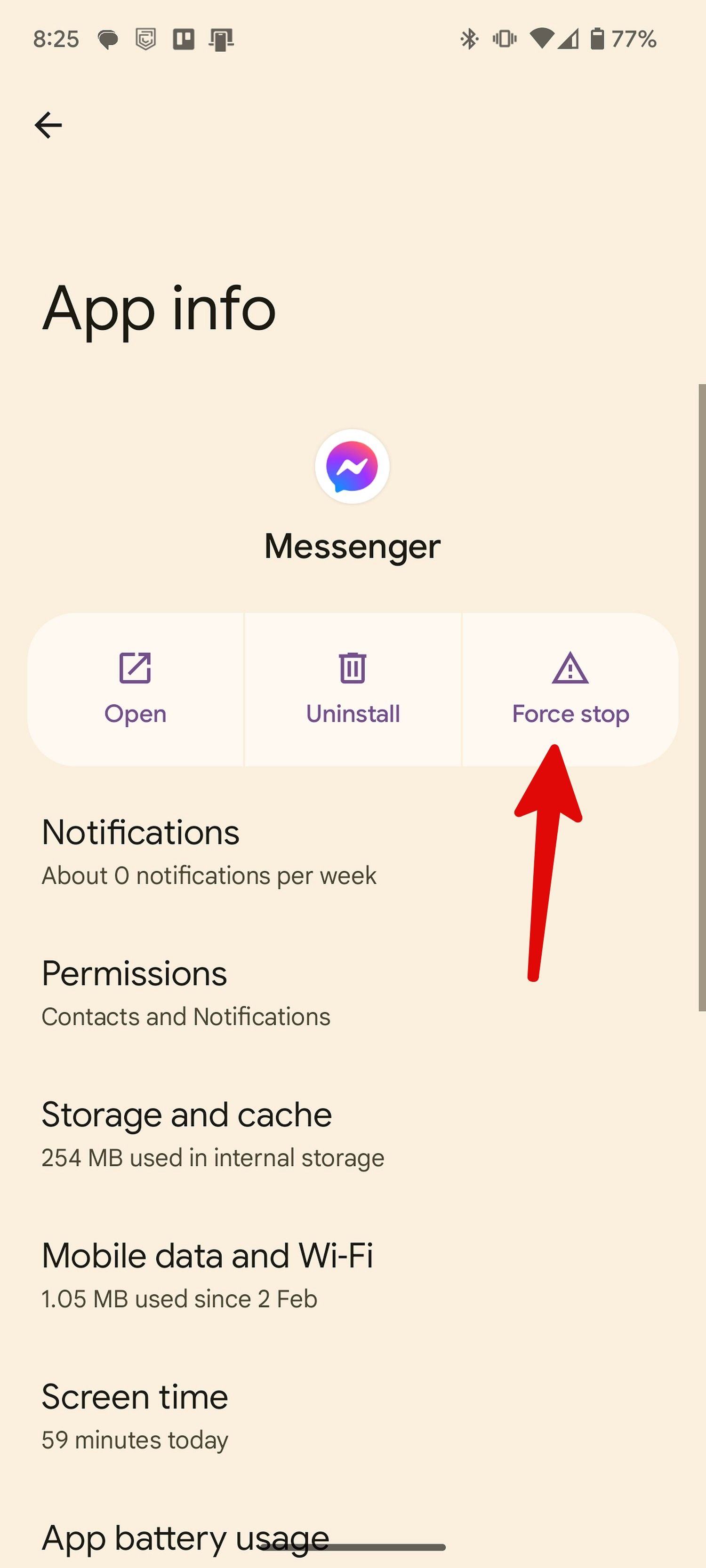
Make sure you have enough storage on your Android or iPhone
Insufficient space on your phone may be the major factor behind Messenger’s crashing issue. You can read our dedicated post to free up storage on your Android phone.
Clear the Messenger cache
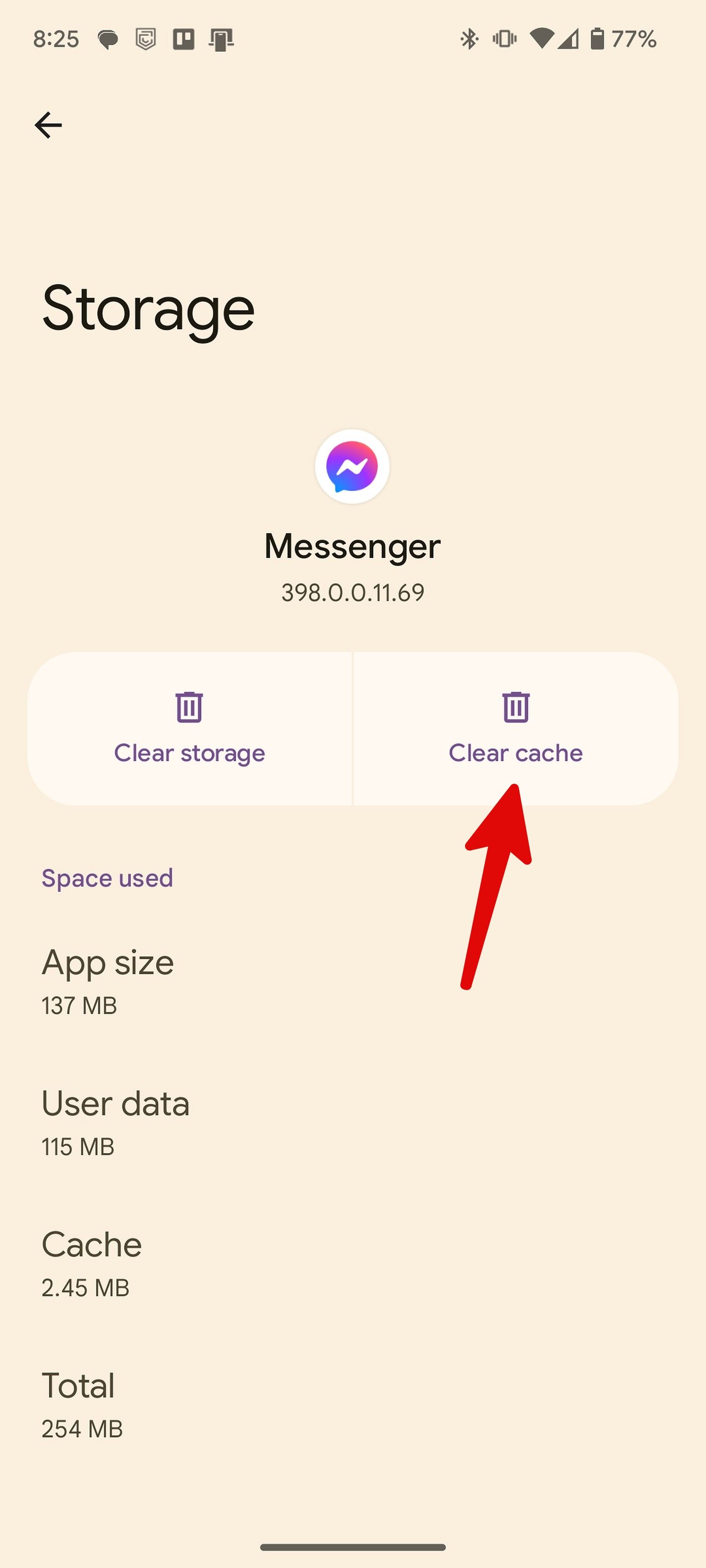
A corrupt Messenger cache also leads to crashing issues. Here’s how to fix the problem on the iOS and Android apps
- Open the Messenger app info menu (check the steps above).
-
Select
Storage & cache
and
clear cache
from the following menu.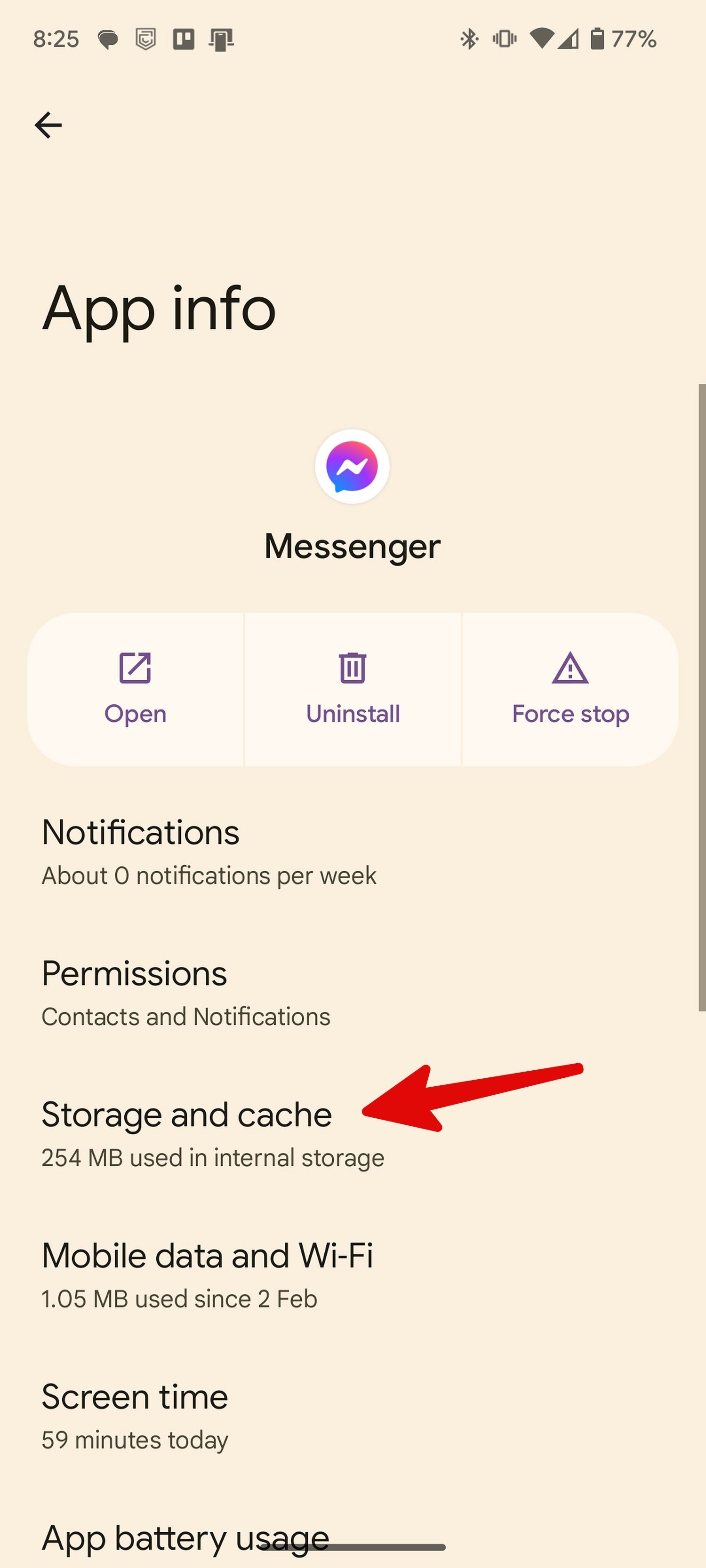
If you use iOS 16, you’ll need to offload the app to clear the cache and reinstall it. Your data isn’t lost during this process, though you may want to back up your phone to iCloud.
-
Open the
Settings
app. -
Select
General,
followed by
iPhone Storage. -
Find and select the
Facebook Messenger
app. -
Tap
Offload App.
If you use iOS and your iPhone or iPad is running slow, you can also offload all the apps you rarely use. After tapping the iPhone Storage icon, enable the Offload Unused Apps option. Again, this process only removes the app; your data will not be deleted.
5 Facebook Messenger notifications don’t work
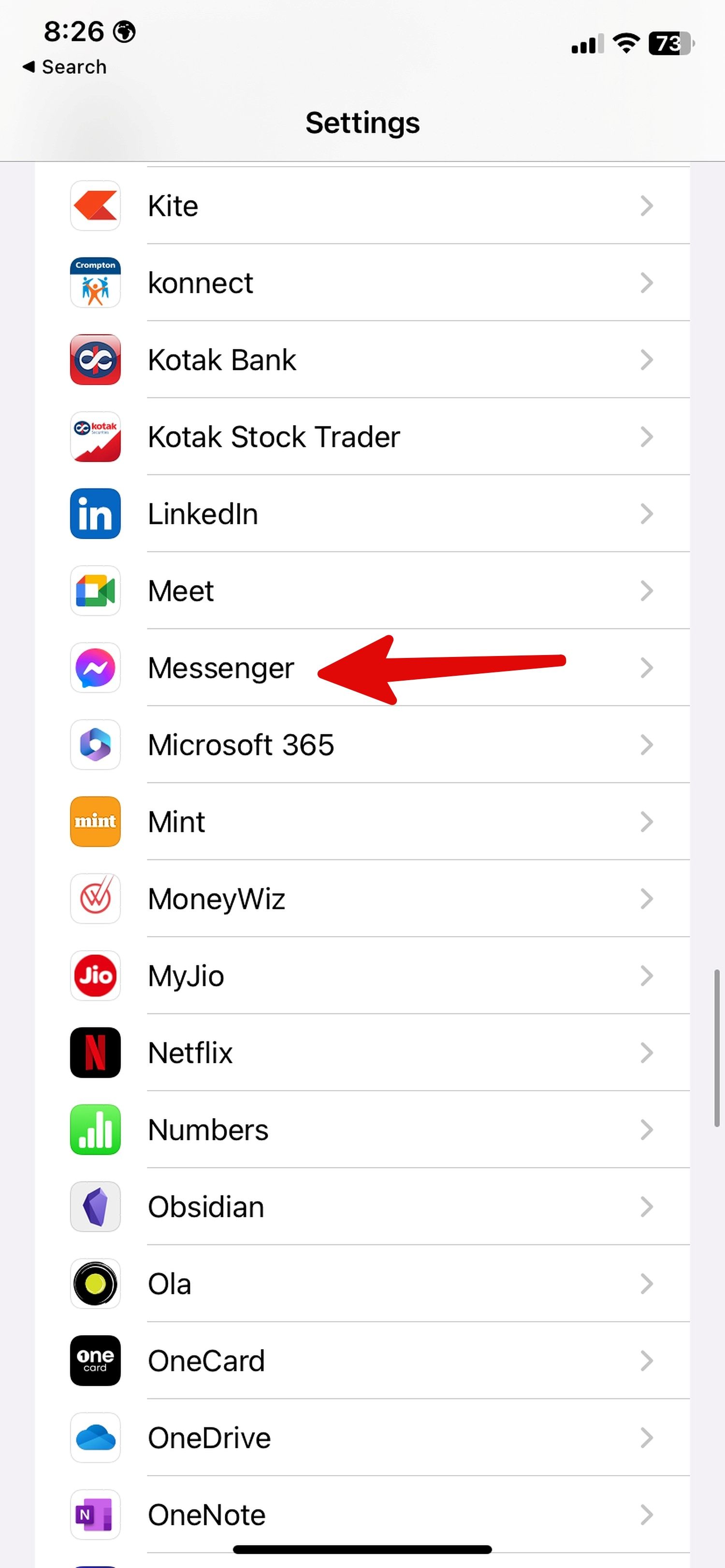
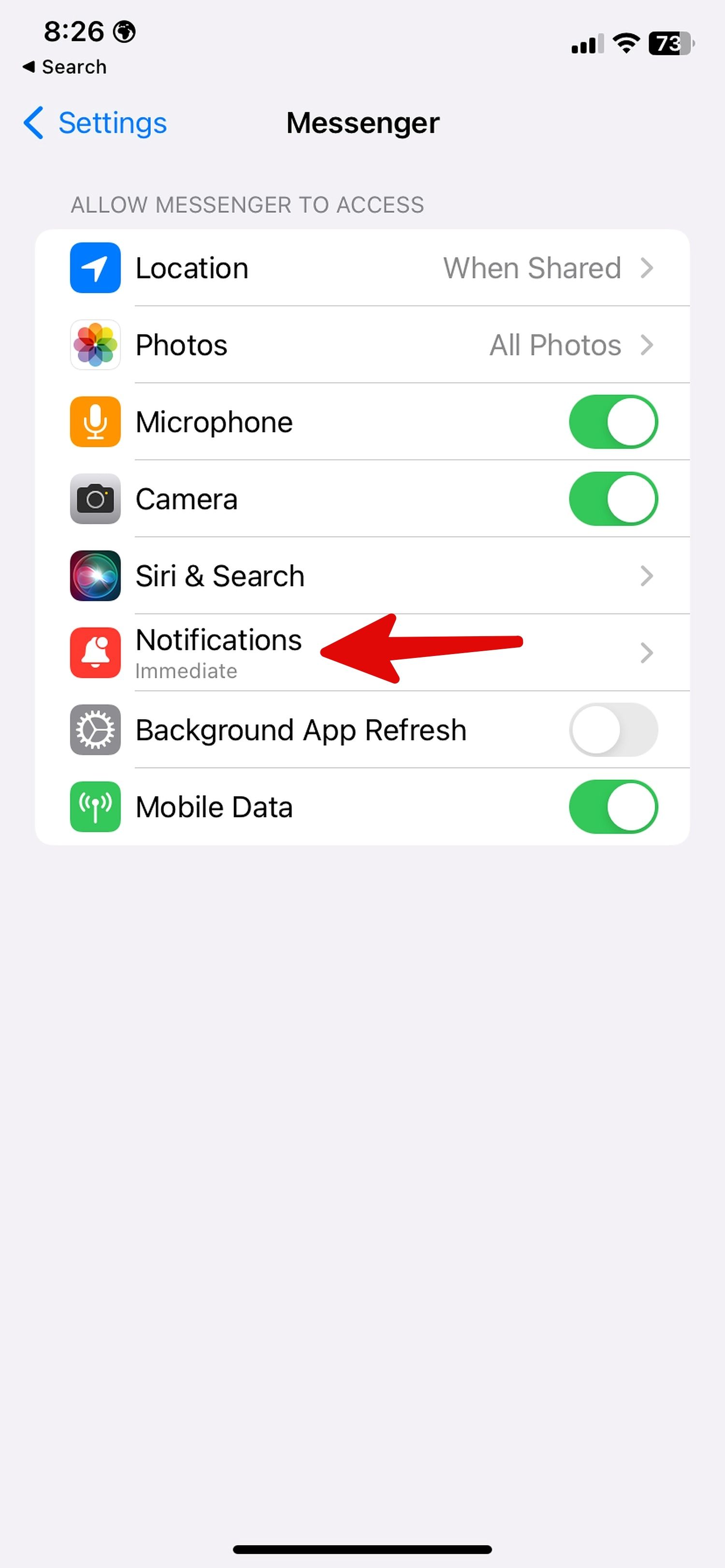
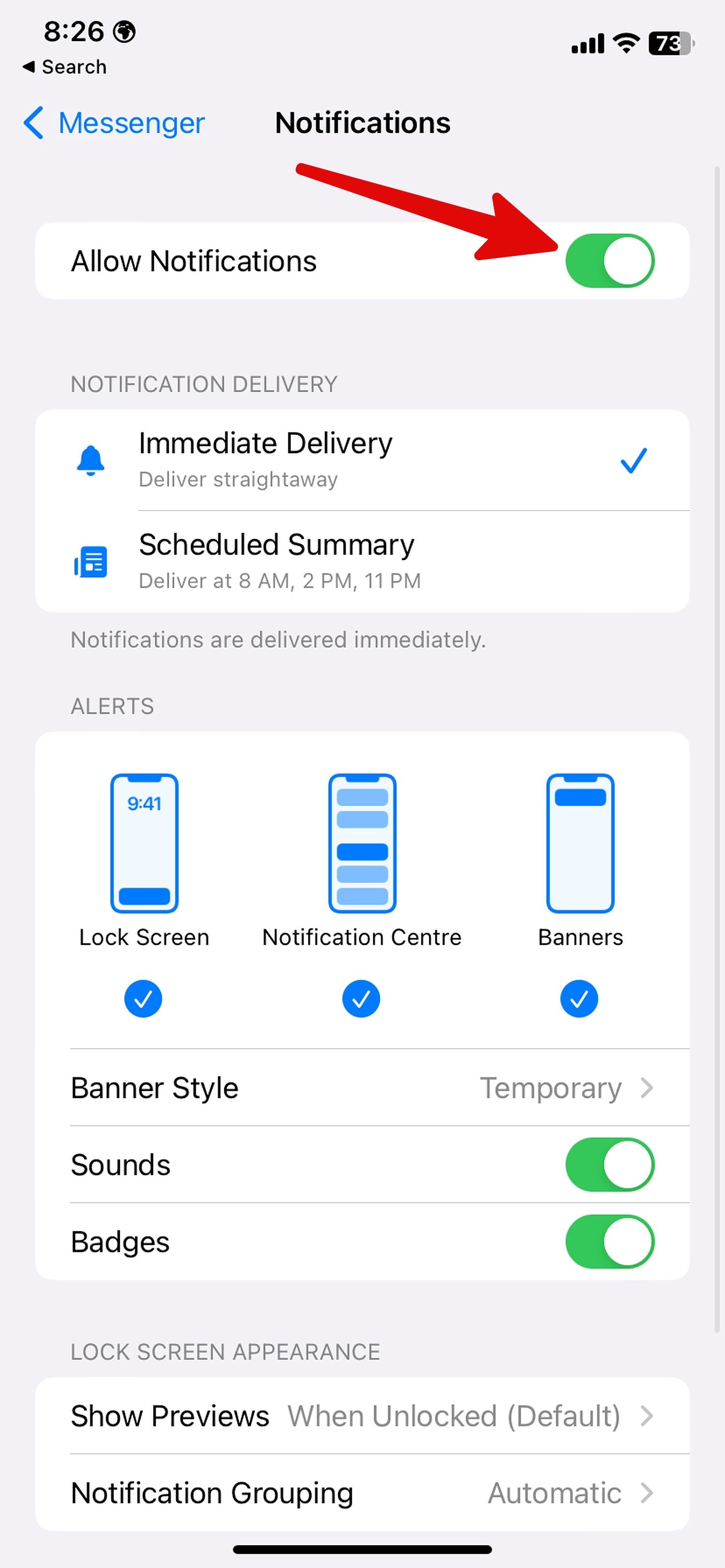
You should enable notification permission for Messenger to receive instant alerts.
Allow notifications on iOS
- Open Messenger in iPhone Settings (check the steps above).
-
Select
Notifications
.
-
Enable the permission.
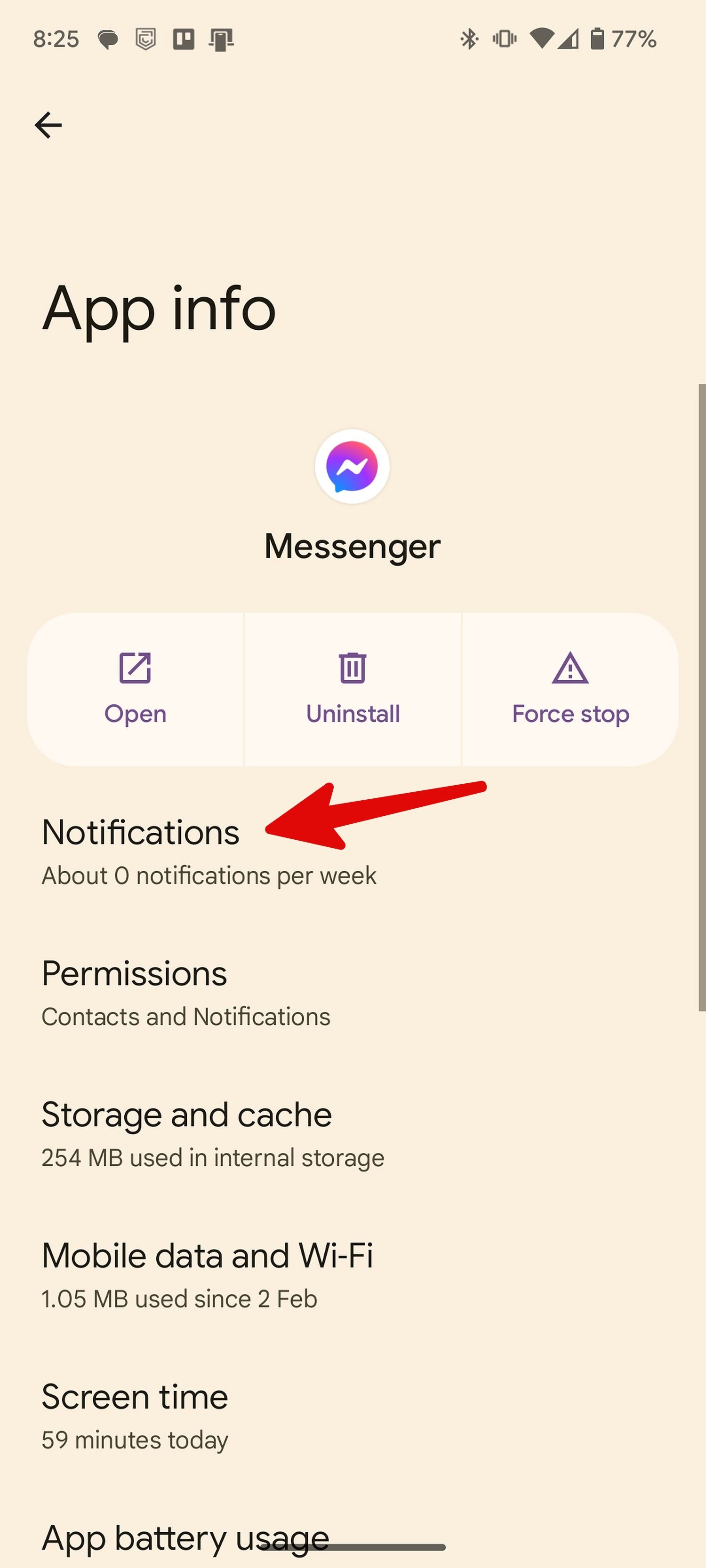
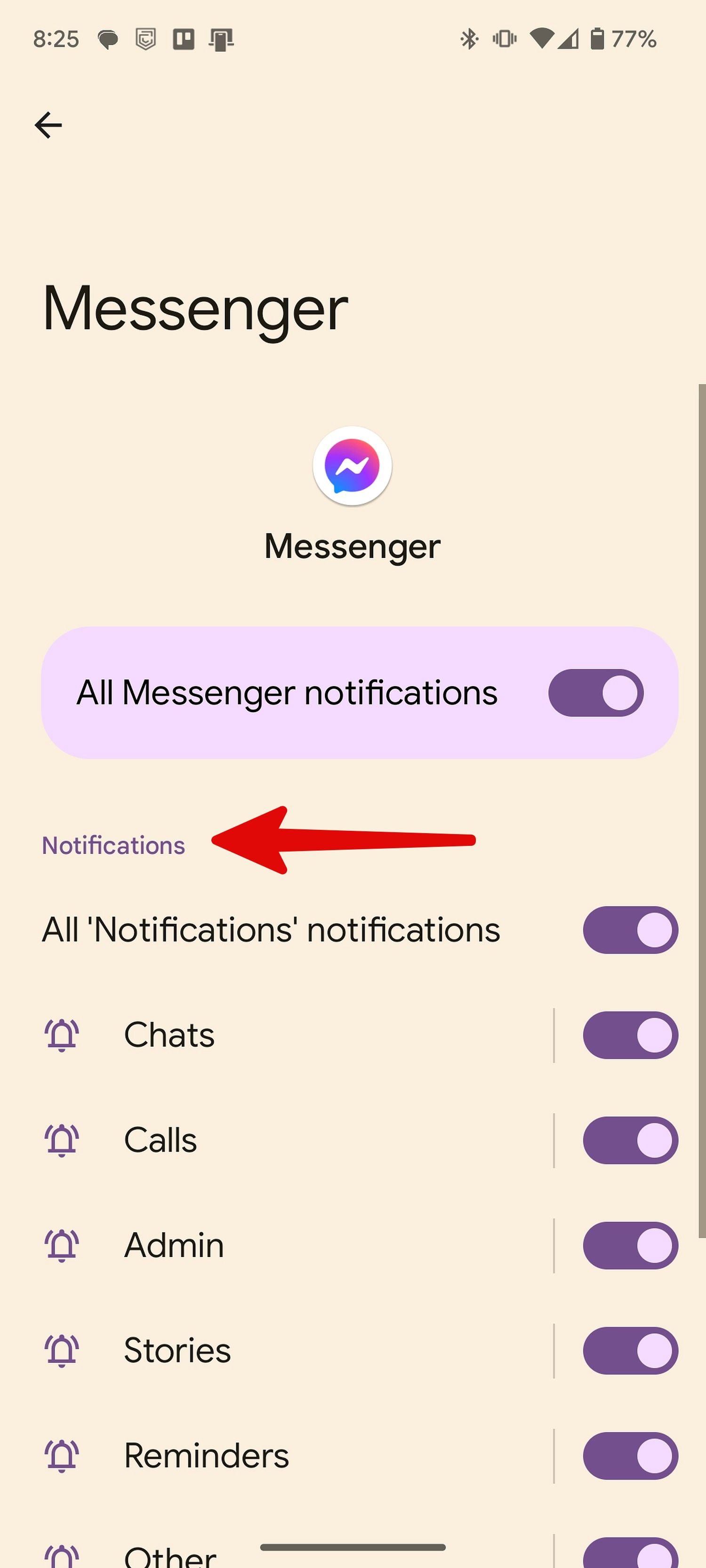
Turn on Messenger notifications on Android
- Head to the Messenger app info menu (refer to the steps above).
-
Select
Notifications
. -
Turn on notification permission for relevant categories.
You should also disable Do Not Disturb mode on your Android and iPhone. If you still face issues with Messenger or other app notifications, read our dedicated guide to fix common notification problems on Android.
6 Messages have disappeared
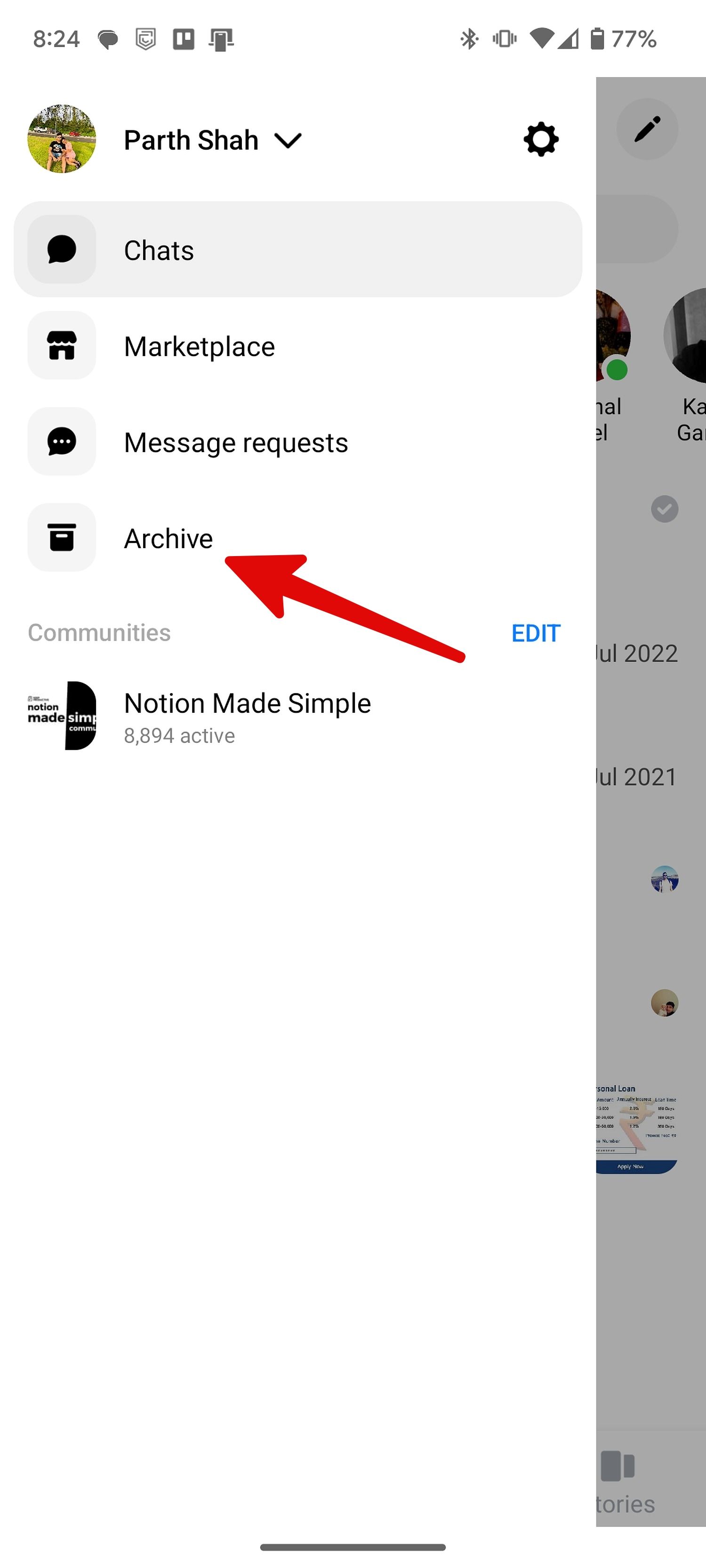
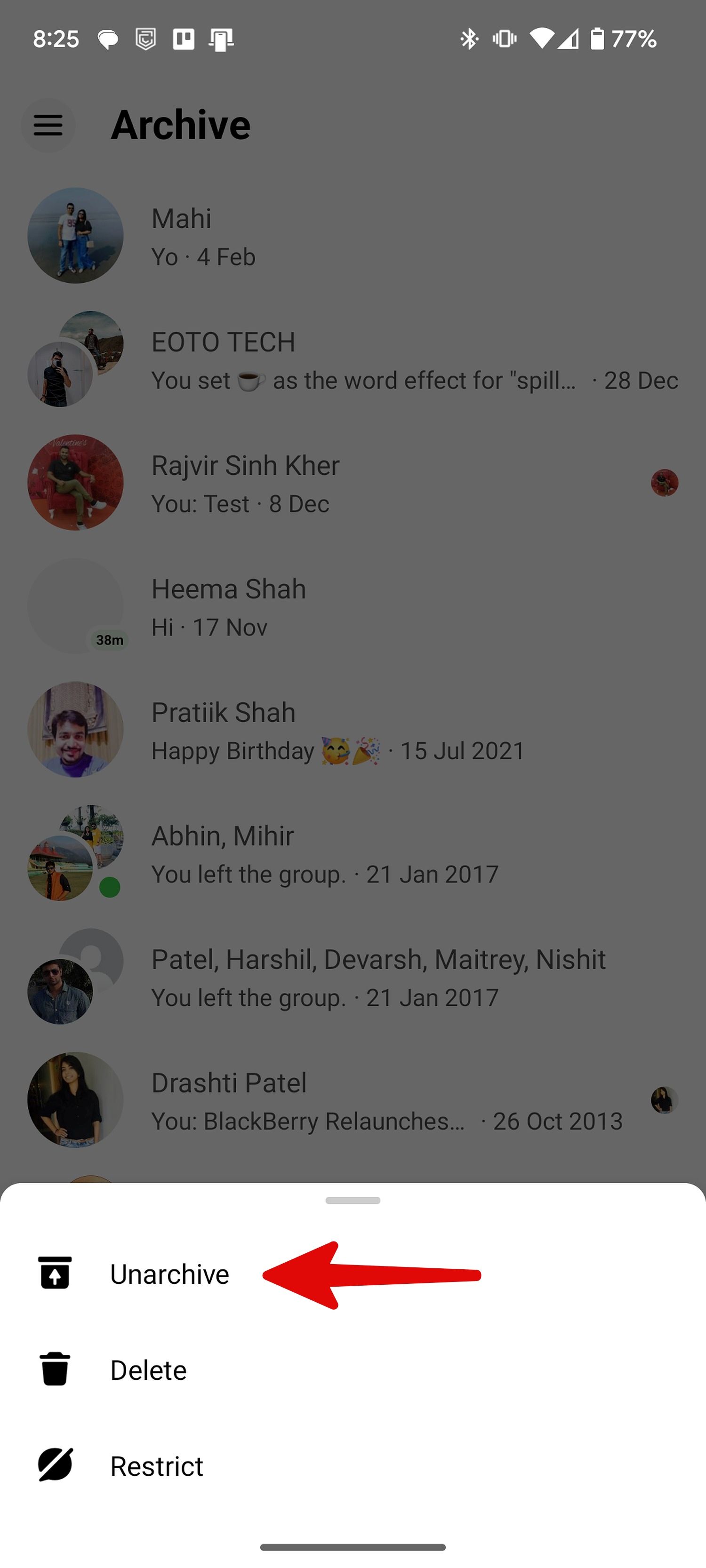
Did you or your little one accidentally delete a conversation on Messenger? There isn’t a way to retrieve such messages. If you have archived conversations, the messages disappear from the main screen. Here’s how to unarchive them.
-
Open the
hamburger menu
in Messenger. -
Tap
Archive
. -
Long-tap a chat and select
Unarchive
.
7 Can’t see stories in Messenger
Facebook automatically deletes stories after 24 hours. If you can’t see someone’s recently uploaded story, the person may have hidden the story from you.
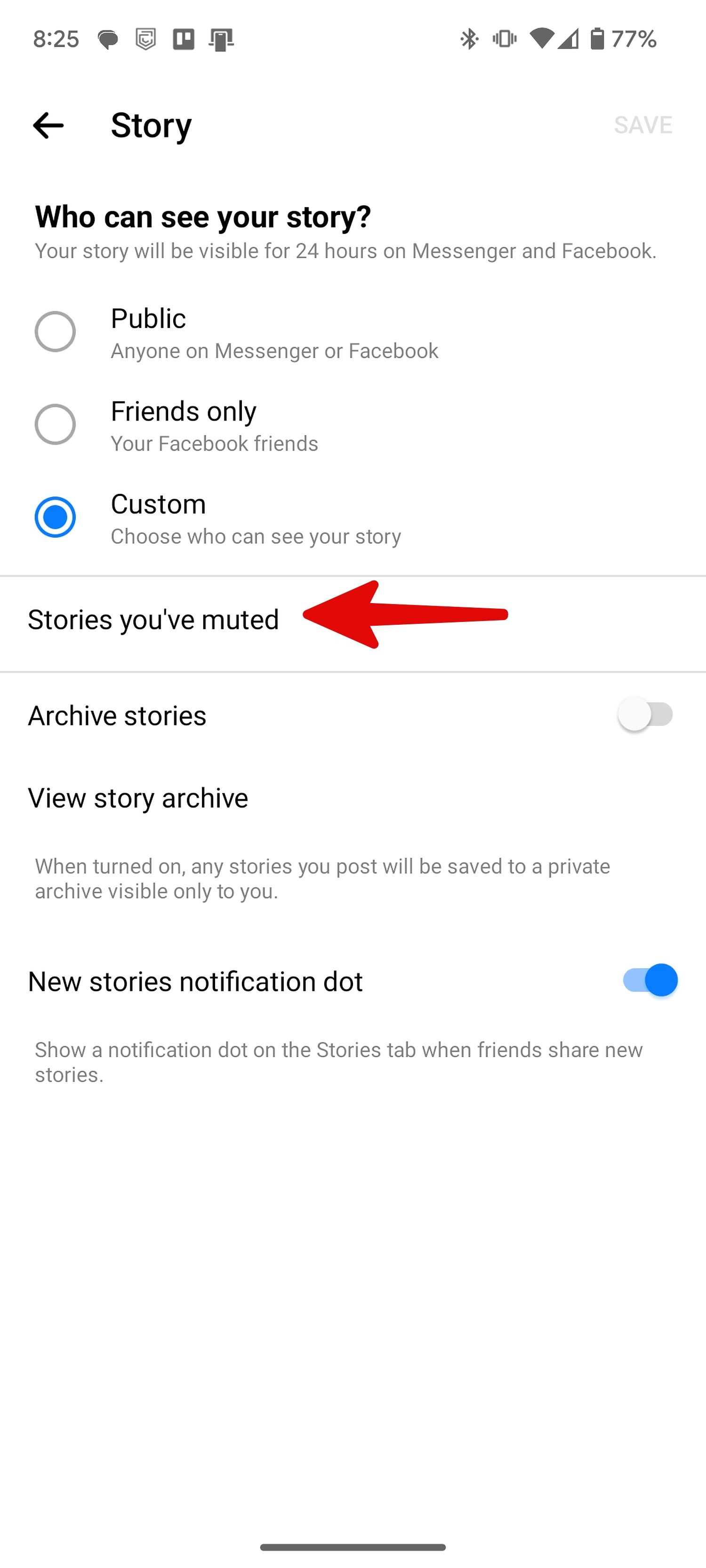
If you have muted stories from several people, unmute them using the steps below and check their stories on Messenger.
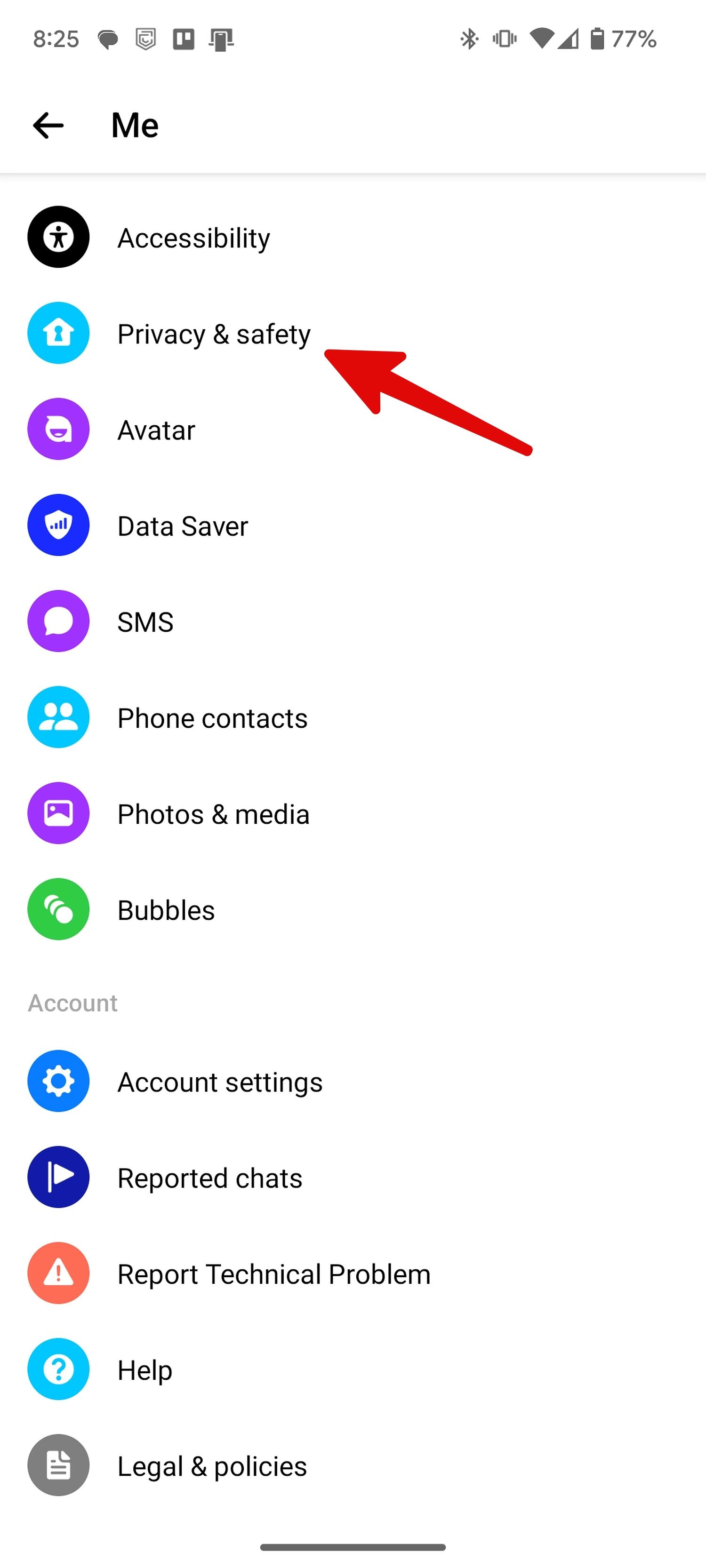
- Open Messenger Settings (check the steps above).
-
Scroll to
Privacy & safety
. -
Select
Story controls
.

-
Open
Stories you’ve muted
. -
Unmute your friends, and their stories should appear on Messenger.

Enjoy a flawless Facebook Messenger experience
If you use Facebook Messenger to share confidential media or messages, we recommend enabling two-factor authentication for your Facebook account. You can read our dedicated guide to add an extra layer of security to your Facebook account.