
How to Disable Gemini in Gmail, Photos, Chrome, and More
How to Turn Off Gemini in Gmail, Photos, Chrome, and More
Gemini is a smart feature in Google products that can help you with tasks like summarizing content, creating drafts, and finding important information. But if you prefer not to use Gemini, here’s how to turn it off easily in Gmail and other Google apps.
Steps to Turn Off Gemini in Gmail
Although you can turn off Gemini in other Google Workspace apps like Drive or Calendar, doing it in Gmail is the simplest way.
- Open Gmail: Go to your web browser and sign in to your Gmail account with your Google account.
- Access Settings: Look for the settings icon, which looks like a gear. Click on it.
- See All Settings: From the dropdown menu, select “See all settings.”
- Find Smart Features: Under the “General” tab, scroll down until you find the section called “Google Workspace smart features.”
- Manage Settings: Click on “Manage Workspace smart feature settings.” This will show you the options for smart features.
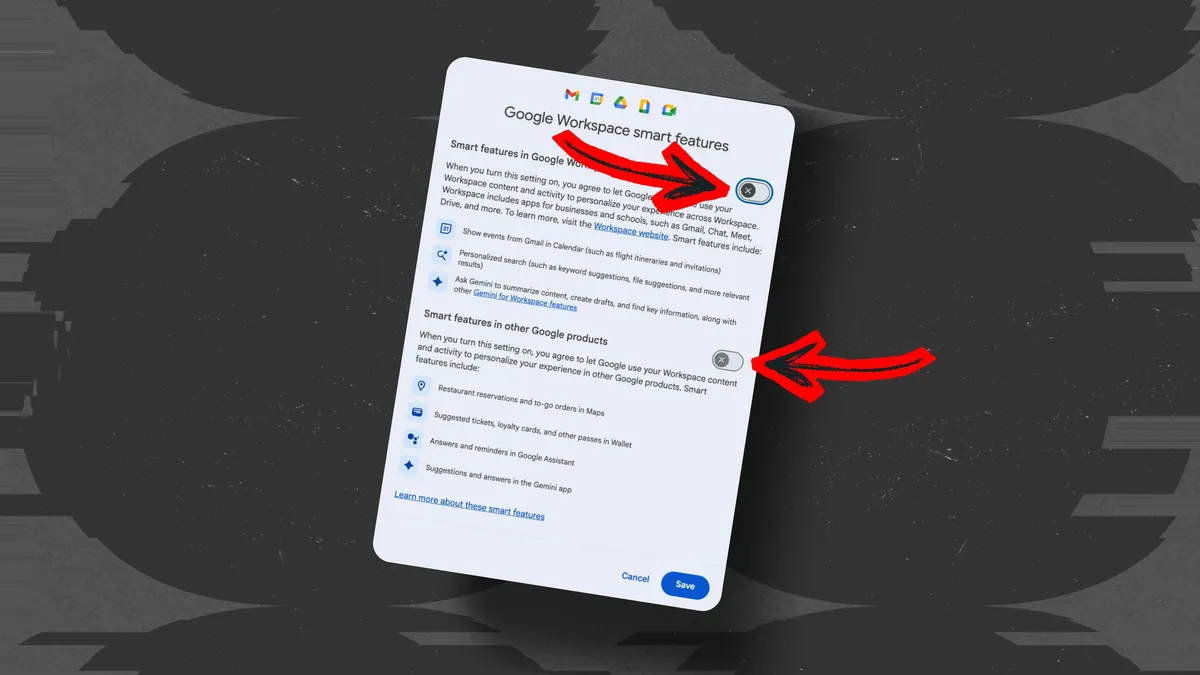
- Turn Off the Toggle: You will see two toggles:
- The first toggle controls smart features in Google Workspace products (like Gmail and Docs). If you turn this off, you will not allow Gemini to summarize content or create drafts.
- The second toggle is for other Google products (like Maps). You can also turn this off, but keep in mind that it will remove suggestions and other features.
- Final Step: Make sure you switch off the toggle you want. Even after turning off, you might still see some Gemini icons, but they won’t work.
What Happens When You Turn Off Gemini?
Once you have disabled the smart features:
- You won’t see Gemini suggestions or summaries in Gmail, Photos, or other Google Workspace apps.
- However, some icons, like “Help me write,” might still be visible. Clicking these will prompt you to turn the smart features back on.
Conclusion
If you find Gemini more of a distraction than a help, following these simple steps will help you turn it off. You can enjoy using your Google apps without smart suggestions getting in your way!